
How to Test Your Phone Screen: Dead Pixels, Touch Response and Scratches
Posted on08 September 2026
Short answer: Test a phone screen three separate ways. For dead and stuck pixels, display nine full-screen colours — red, green, blue, cyan, magenta, yellow, white, black and grey — at full brightness on a clean screen; a dead pixel stays black on every colour, a stuck one stays a single colour. For touch dead zones, draw continuously across the whole surface including the edges. For scratches, use a fine grid at a slight angle. No app can detect dead pixels for you: Android exposes no API for panel defects, so any screen-health score is invented.
A phone screen can fail in three different ways, and they need three different tests. People usually do one, find nothing, and assume the screen is fine.

The three failures
Dead and stuck pixels. A dead pixel stays black on every colour. A stuck pixel stays on one colour — a red, green or blue dot that never changes. You cannot see either against a photo or a web page, because your eye reads them as part of the image. They only show against a flat field of one colour, full screen.
Touch dead zones. A patch of screen that stops registering. Common after a drop, and easy to miss because you adapt — you start tapping slightly to one side without noticing.
Physical damage you can't see head-on. Fine scratches and early delamination are invisible straight on and obvious against a grid or at an angle.
Testing it yourself
For pixels: you need nine full-screen colours — red, green, blue, cyan, magenta, yellow, white, black and grey. Clean the screen first, or you will chase dust. Set brightness to maximum. Look at each field from about 30cm. A dead pixel shows as black on every colour except black. A stuck one shows as a coloured dot on white and stays that colour on the others.
Black and grey are the two people skip, and they're where backlight bleed and uneven panels show up.
For touch: draw continuously across the whole surface, corner to corner, including the edges. Edges are where dead zones start.
For scratches: a fine grid pattern at full brightness, viewed at a slight angle.
Why your phone can't score this for you
Here's the part that matters, and most "screen test" apps get it wrong: a phone cannot detect its own dead pixels. There's no API that reports panel defects. The display driver doesn't know a pixel is dead — it sends the same signal either way.
So any app that shows you a screen-health score has invented it. The only real test is a human looking at a flat colour field and saying what they see.
DeviceGPT does it the honest way. Its Screen Test shows the nine full-screen colours and a grid for scratches, then asks you whether you saw anything and records your answer. It never guesses a score. It also has a multi-touch check that counts how many fingers the screen registers at once, alongside a camera check (opens, captures, locks focus) and a mic test if you want more of the hardware covered in the same app. For touch dead zones, the draw-across-the-screen test above is still the one to do by hand. Free, no root.
If you find something
- One or two stuck pixels: sometimes recoverable by cycling colours rapidly for 10–20 minutes. Dead pixels never come back.
- Under warranty: manufacturers have a minimum defect count before they'll replace a panel, usually 3–5. Photograph the evidence.
- Buying used: run all nine colours before you hand over money. Sellers photograph screens showing bright images for a reason.
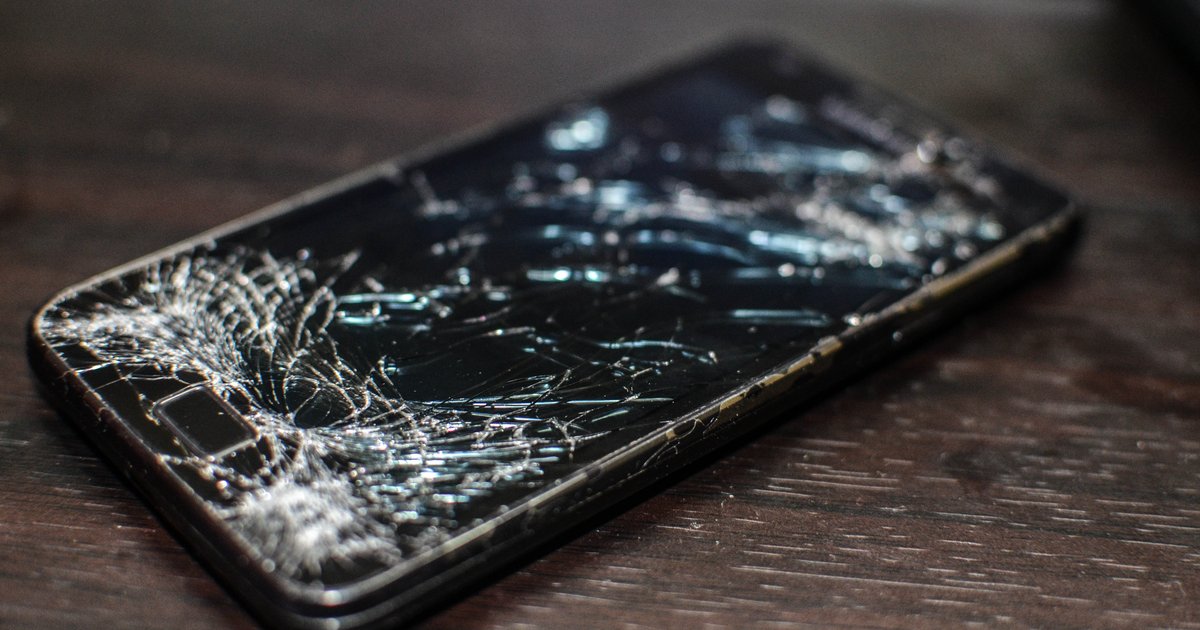
Cover photo: “Samsung Galaxy S2 shattered screen”, via Wikimedia Commons, CC BY-SA 2.0.
Frequently asked questions
What is a stuck pixel?
A stuck pixel stays on one colour — a red, green or blue dot that never changes. A dead pixel stays black on every colour. Stuck pixels are sometimes recoverable by cycling colours rapidly for 10-20 minutes; dead ones are not.
Can dead pixels be fixed?
Dead pixels cannot. Stuck pixels sometimes respond to rapid colour cycling. If you are under warranty, manufacturers usually require a minimum count before replacing a panel, commonly three to five, so photograph the evidence.
How do I test my touch screen?
Draw continuously across the whole surface, corner to corner, including the edges — edges are where dead zones start. A single tap test misses them because you unconsciously adapt and tap slightly to one side.

Nine full-screen colours for dead and stuck pixels, a scratch grid, and a multi-touch check — and it records what you saw rather than guessing a score.
Install free on Google PlaySee what it does →